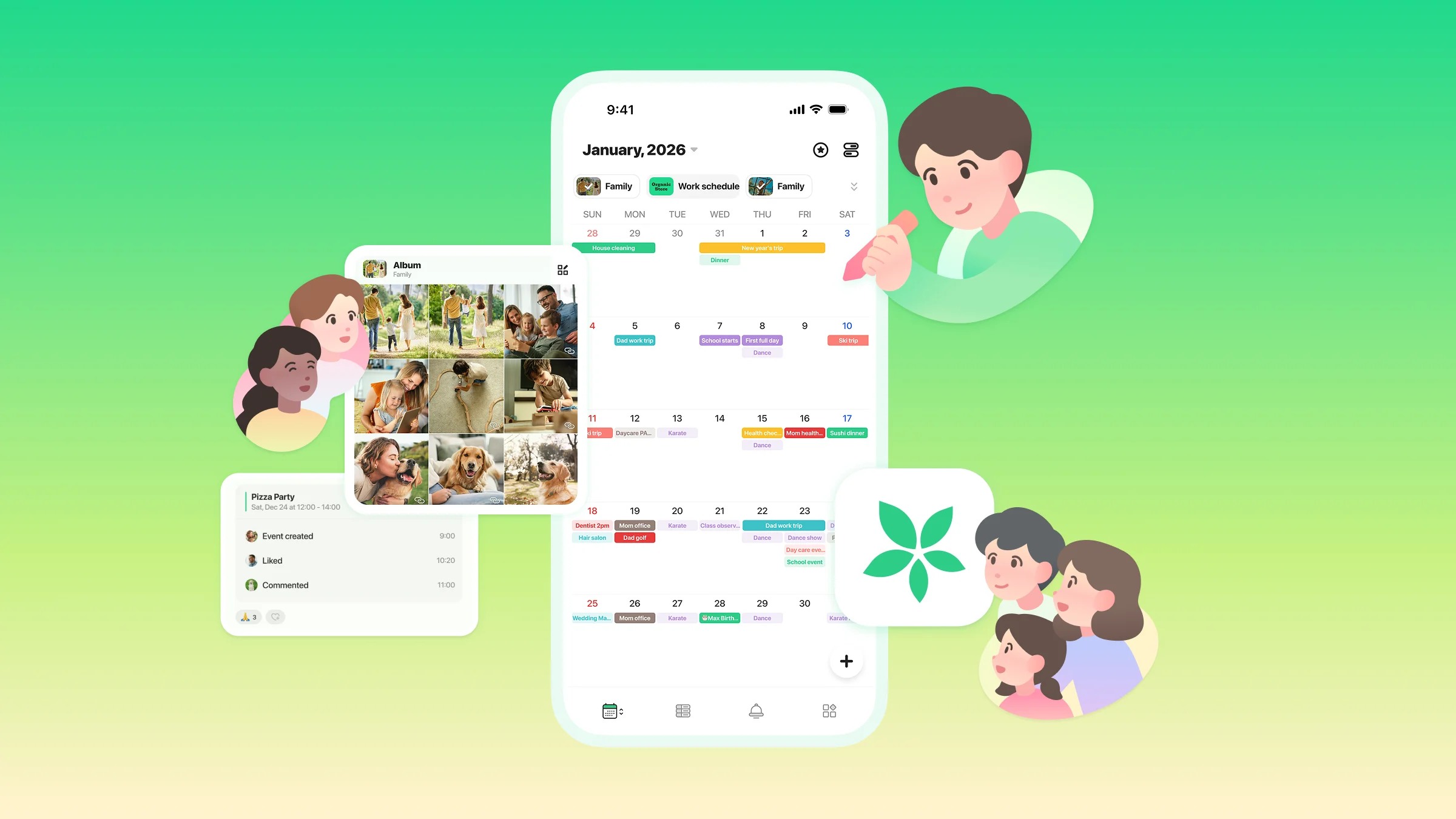
A Clearer, More User-Friendly View of Your Schedule
Introducing the Home Calendar
Thank you for using TimeTree. Starting in late January, we will be rolling out a renewed app interface. Over two updates, we’ll be introducing the key changes step by step.
In this update, we’ll walk you through what has changed with the redesign and introduce the new Home Calendar feature.
A Simpler, More Intuitive Layout
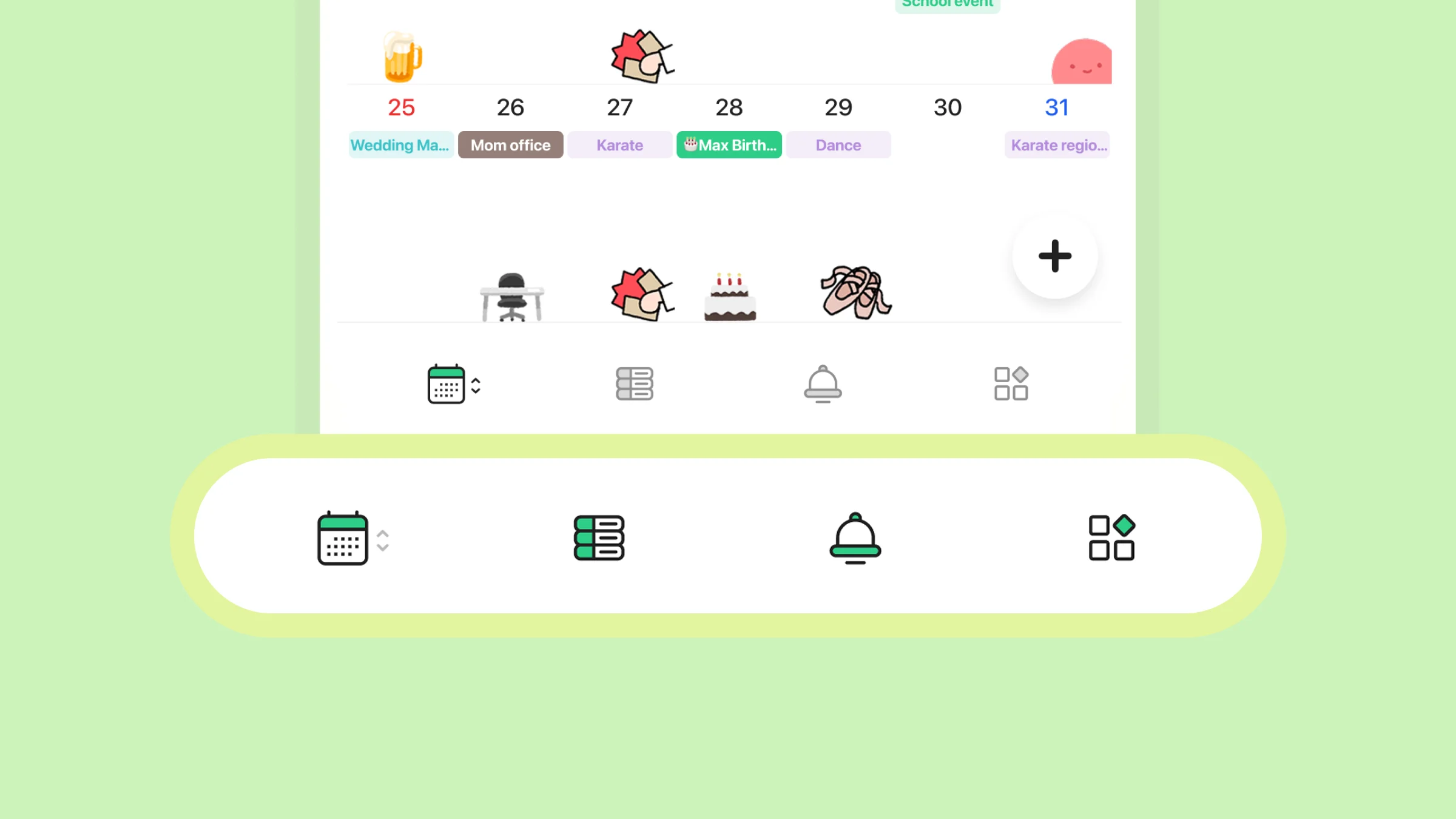
With this redesign, we’ve revisited the overall layout of the app. By focusing on schedule management, we’ve made it easier to access each feature more intuitively.
Key Changes
The global menu, which previously appeared by tapping the image icon at the top-left corner, has been moved to the menu icons at the bottom of the screen.
The icon in the bottom-left opens the Home Calendar. You can switch between multiple calendars and easily see when you’re free.
The Calendar List can now be opened directly from the list icon, making it quicker to jump to a specific calendar when you want to view details.
Account and app settings have been moved to “More” in the bottom-right corner.
If you’re wondering where the menu in the top-left went, please check the tabs at the bottom of the screen.
Introducing the Home Calendar
The screen you previously used as “All Calendars” has been reborn as the Home Calendar.
Designed as a place where you can view multiple calendars at a glance, it now features a cleaner layout that lets you quickly find the events you want to see.
What You Can Do with the Home Calendar
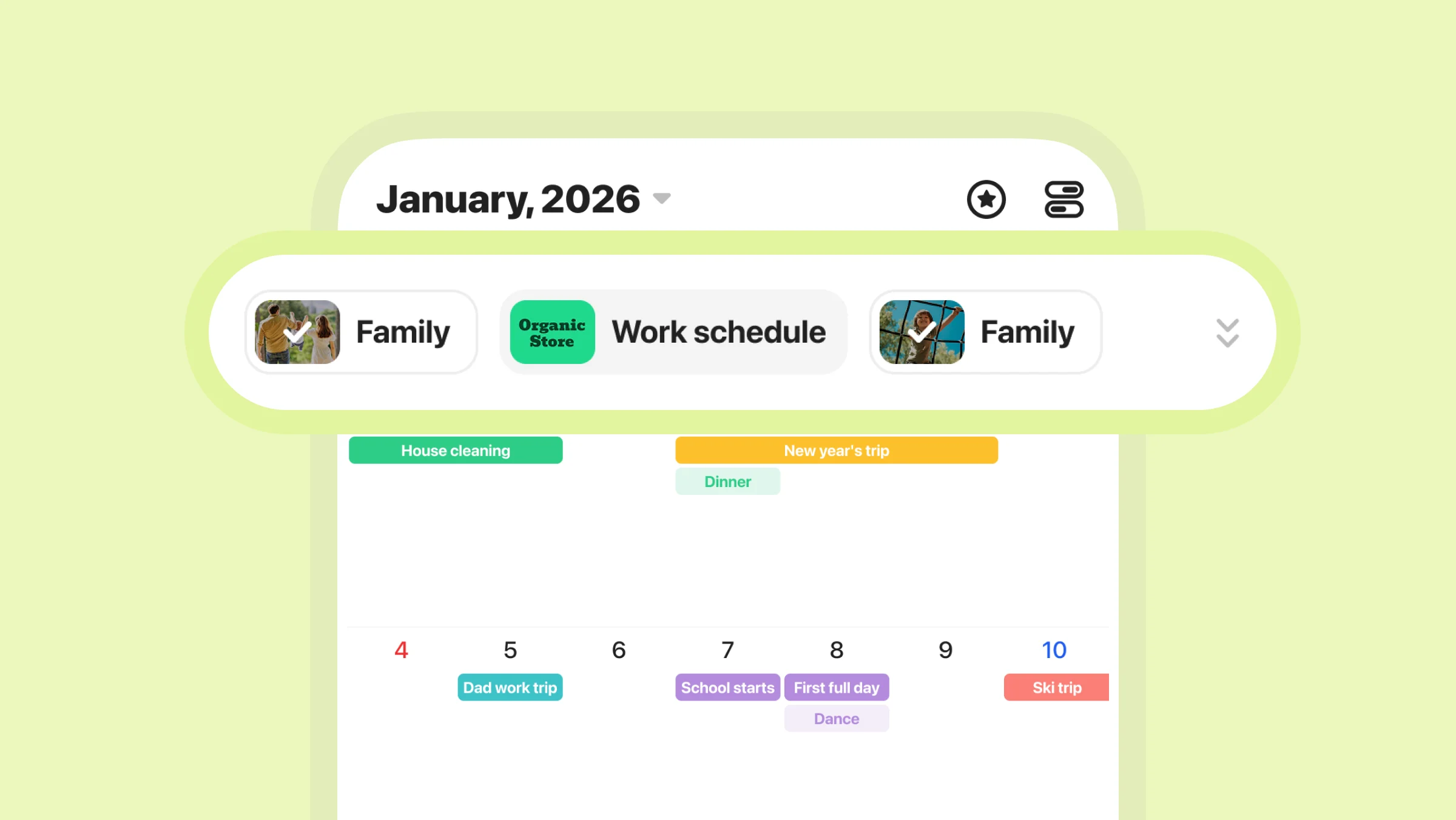
1. View Events from Multiple Calendars at Once
The Home Calendar lets you view events across multiple calendars in one place, including external calendars and followed public calendars.
Even if your schedules are spread across family, work, and hobby calendars, you can easily check
“What’s on today?” from this single screen.
If you use TimeTree on your own, creating or following calendars by purpose,such as school, hobbies, or public calendars you’re interested in,can make it even more convenient.
2. Turn Calendars On or Off with Filters
Just like before, you can easily switch which calendars are shown using the filters at the top of the screen.
By comparing events from all of your calendars, you can plan how you’d like to spend your time going forward.
3. Reorder Filters
You can change the order of the filters using the toggle icon in the top-right corner. Reordering calendars by how often you use them makes switching views smoother.
Not Sure Where to Find Something?
While some entry points have changed due to the new layout, all the features you’ve been using remain available.
If you can’t find a feature or have any questions, feel free to reach out via the Help Page or Contact Us.
Coming Up Next…
In the next update, we’ll introduce the Calendar List, including how to access individual calendars as well as features like memos and albums.