Updates
The web version now supports dark mode!
The highly requested dark mode is coming soon to the TimeTree web version! After becoming available to you at the end of August, the mode will match your device's current appearance, but you can always change it by following the steps below.
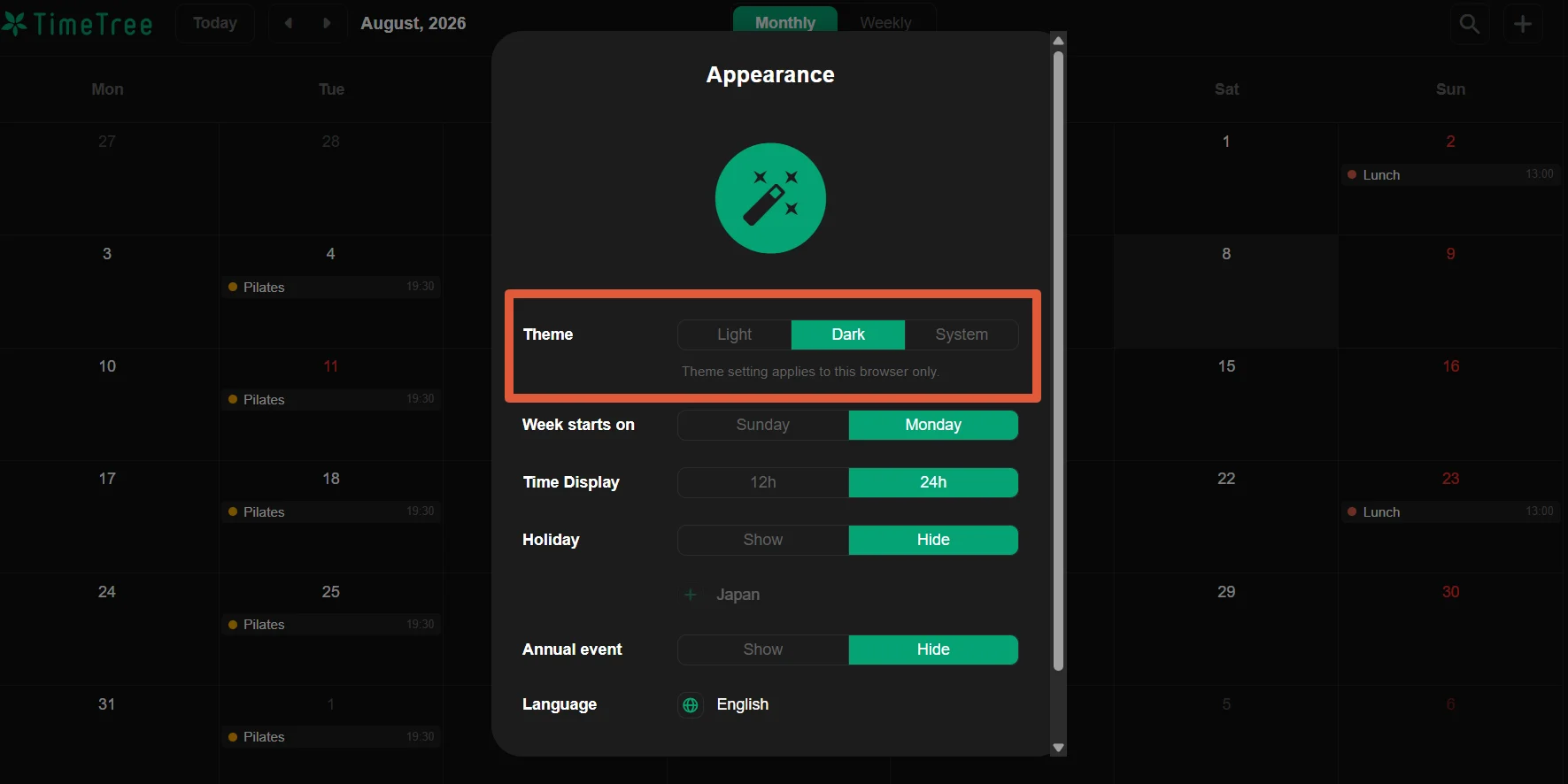
How to change:
Click your profile icon at the top right of the screen.
Click Settings (the gear icon).
Click Appearance Settings.
Under Appearance Mode, choose Light or Dark.
Click Save.
Important things to know:
If you use a different browser or device, you will need to choose your setting again.
If you log out, the setting will go back to the default. You will need to set it again when you log back in.